
Maximizing Personalization: How to Utilize Lookup Rules for Dynamic HTML Field Values
- schooloffiche
- Dec 11, 2024
- 2 min read

Updated: Dec 26, 2024

Introduction:
Imagine transforming your Laserfiche forms into dynamic, interactive experiences that not only capture data but also engage users in a meaningful way. By moving field values to custom HTML fields, you can harness the power of HTML and CSS to create visually appealing, user-friendly forms. This approach allows for greater flexibility in design, enabling you to tailor the user interface to meet specific needs and enhance the overall user experience.
Use Cases:
Dynamic Timetables: Students can enter their subjects and periods into a form, and JavaScript can pull these values to create a personalized timetable displayed on the screen.
Personalized Certificates: After completing a course or activity, students can receive personalized certificates. JavaScript can pull the student’s name and other details from the form fields and insert them into a pre-designed HTML certificate template.
Student Information Forms: Schools can use JavaScript to prefill student information forms. When a student enters their ID number, JavaScript can pull their details (like name, grade, and class) from a database and display them in the form fields, making the process faster and reducing errors.
Test Version: Laserfiche Forms Professional Version 11.0.2311.50564
Setup: Download codes from Bait and Tackle "Embed field values from Lookup Rules to Custom HTML"
Embed field values from Lookup Rules to Custom HTML - Modern Designer
Select JS in the top right corner.
Copy and paste the JavaScript code from "Embed field values from Lookup Rules to Custom HTML" into JS.

Add a Custom HTML field to your form.
Select the Code View.
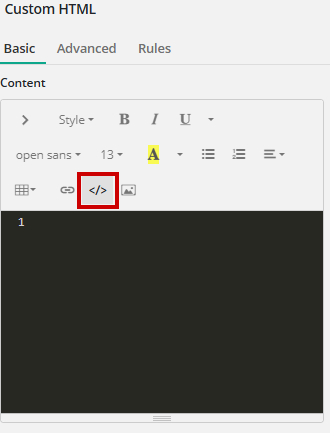
Copy and paste the HTML code from "Embed field values from Lookup Rules to Custom HTML".
*Change the Field IDs accordingly to match the IDs in your form to pull the values of the fields into the custom HTML.
*Change the field variable names to match your created fields.
*Adjust text, size, font and color as desired.
Raw Form View:

In Action:


