
How to Add Creative Fonts to Your Form Using Google API
- schooloffiche
- Dec 8, 2024
- 1 min read

Updated: Dec 26, 2024

Introduction:
Incorporating fun Google API fonts into your Laserfiche forms can significantly enhance their visual appeal and user experience. By leveraging a diverse range of stylish and aesthetically pleasing fonts, you can transform a standard form into an engaging and visually captivating interface. These fonts not only add a touch of personality and uniqueness but also improve readability and user interaction.
Use Cases:
Aesthetic Appeal: Custom fonts can make your forms more visually appealing, which can increase engagement and make the process of filling out forms more enjoyable.
Professionalism: High-quality custom fonts can give your forms a polished and professional look, which can positively impact how users perceive your school or organization.
Highlighting Key Information: Unique fonts can be used to draw attention to important sections or instructions, ensuring that critical information is not overlooked.
Test Version: Laserfiche Forms Professional Version 11.0.2311.50564
Setup: Download codes from Bait and Tackle "Use Google API for custom fonts"
Use Google API for custom fonts - Modern Designer
Add a Custom HTML field to your form.
Select the Code View.
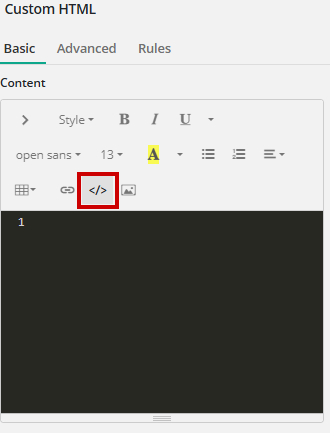
Copy and paste the HTML code from "Use Google API for custom fonts".
Select CSS in the top right corner.

Copy and paste the CSS code from "Use Google API for custom fonts" into CSS to apply styling to enhance your button.

Conclusion: Reel in Success with Custom Fonts
Using custom fonts in your Laserfiche forms can hook users with improved readability, brand consistency, and a professional touch. They make your forms more engaging and accessible, ensuring a positive user experience.


